Quick Answer: Here’s how to add negative keywords in Google Ads: go to Campaigns, select a campaign or ad group, open the Keywords section, choose Negative Keywords, click the plus button, and enter your term with the match type you want (broad, phrase, or exact). For terms you want blocked across multiple campaigns, build a shared negative keyword list instead and apply it wherever needed.
Before You Add Negative Keywords in Google Ads, Decide Where It Belongs
Google Ads lets you add negative keywords at three levels. Picking the right one before you start saves you from having to redo this later.
- Use ad group level if the term is irrelevant for just that one ad group but might be relevant elsewhere in your account.
- Use campaign level if the term is irrelevant for the entire campaign, but might still be relevant in a different campaign.
- Use a shared negative keyword list if the term should be blocked everywhere, across every current and future campaign.
For Google’s own setup instructions, see their official guide to adding negative keywords to campaigns.
How to Add Negative Keywords to a Single Campaign
- Sign in to your Google Ads account.
- In the left-hand menu, go to Campaigns.
- Select the campaign you want to edit.
- Click Keywords in the left sidebar, then select the Negative keywords tab.
- Click the blue + button.
- Choose whether you’re adding to this campaign only or to a shared list.
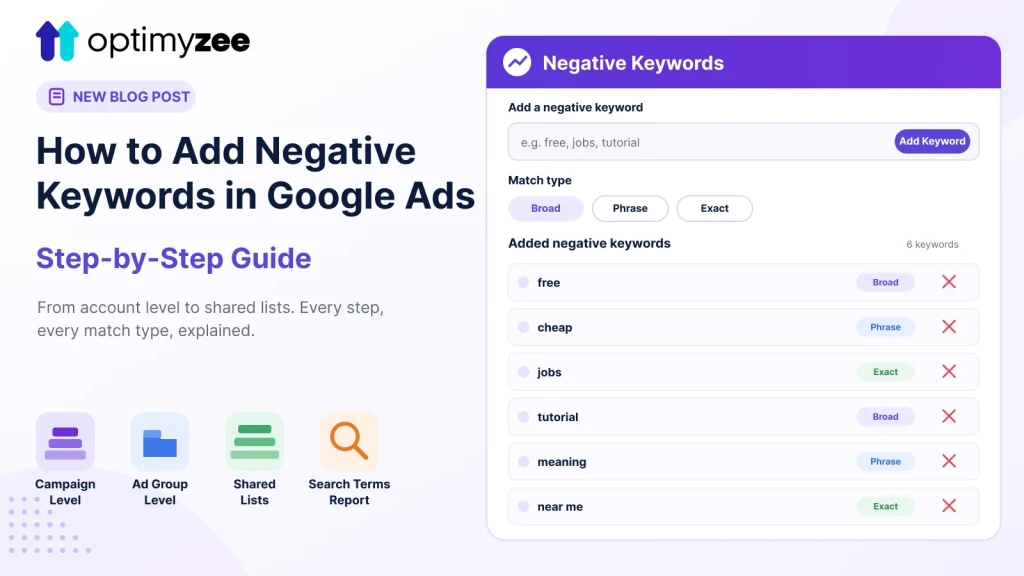
- Type your keyword. Use quotation marks for phrase match (“like this”) or square brackets for exact match ([like this]). No punctuation defaults to broad match.
- Click Save.
How to Add Negative Keywords to a Single Ad Group
- Go to Campaigns, then select the campaign, then the specific Ad group.
- Click Keywords, then Negative keywords.
- Follow the same process as above, entering your term and match type.
- This negative will apply only within that ad group. Other ad groups in the same campaign will still be eligible to show for that term.
How to Build a Shared Negative Keyword List
Shared lists are the most efficient way to manage negatives you want applied consistently.
- Go to Tools and Settings (the wrench icon) in the top navigation.
- Under Shared Library, select Negative keyword lists.
- Click the + button to create a new list, and give it a clear name, for example “Universal Negatives” or “Job Seeker Terms.”
- Add your keywords with the appropriate match type.
- Once the list is created, go back into any campaign, open the Negative keywords tab, and select Use negative keyword list to apply it.
Shared lists mean you only have to build your core negative keyword set once, then attach it to every new campaign going forward.
Finding New Negative Keywords From Your Search Terms Report
Adding negatives from a list is only half the process. The other half is finding new candidates from the queries actually triggering your ads.
- Go to Campaigns, then Insights and reports, then Search terms.
- Sort by Cost, highest first, so wasted spend surfaces at the top.
- Look for terms with spend and no conversions, or terms that are clearly off-intent even if they haven’t cost much yet.
- Select the checkbox next to any term you want to exclude, and click Add as negative keyword.
- Choose the level (ad group, campaign, or shared list) and match type before saving.
This is the step most advertisers skip after the first week of a campaign, and it’s the one that matters most over time, since new irrelevant queries keep appearing as your account accumulates impression history. For the broader strategy behind this process, see our full breakdown of building a negative keyword strategy.
Common Mistakes When Adding Negative Keywords
- Forgetting the punctuation for match type. Typing a keyword with no brackets or quotes defaults to broad match, which is the riskiest option. Be intentional about which match type you’re using.
- Adding a negative that conflicts with an active keyword. If you add a negative that exactly matches (or closely overlaps) a keyword you’re actively bidding on, Google Ads will flag the conflict and your ad may stop showing for that term entirely.
- Not checking Performance Max separately. PMax now supports negative keywords directly, but through a slightly different setup than Search. See our guide on exclusions inside Performance Max campaigns for the details.
- Setting negatives once and never returning. Treat this as a recurring task, not a one-time setup step.
How Optimyzee Automates Adding Negative Keywords
Manually reviewing search terms and adding negatives one by one works fine for a single small account. It becomes a real time cost once you’re managing multiple campaigns or multiple client accounts. Optimyzee’s Negative Keywords tool automates the search-term review, flags safe candidates for exclusion, and lets you approve and publish them directly to Google Ads instead of doing this line by line in the platform.
FAQ
Can I undo a negative keyword after adding it?
Yes. Go back to the Negative keywords tab, find the term, and remove it. There’s no penalty for removing a negative keyword.
Do negative keywords apply to Display campaigns?
Yes, negative keywords can be applied to Display campaigns, though Display targeting relies more heavily on placements, audiences, and topics, so negative keywords play a smaller role there than in Search.
What’s the difference between adding a negative at the campaign level versus a shared list?
A campaign-level negative only applies to that one campaign. A shared list can be applied to as many campaigns as you choose, and updating the list updates it everywhere it’s applied, which is more efficient for terms you want blocked consistently.