Quick Answer: Google Ads for agencies means managing dozens of client accounts without letting quality slip on any single one. Managing multiple Google Ads accounts effectively requires three foundations: a properly structured Manager Account (MCC) hierarchy, standardised processes applied consistently across all accounts, and automation that handles routine monitoring so specialists can focus on strategy. Google’s MCC can manage up to 85,000 accounts from a single login – but scale alone does not guarantee quality. The agencies that maintain performance across large account portfolios are the ones that have systematised the predictable work and reserved human attention for decisions that actually require it.
Managing one Google Ads MCC account well is a skill. Managing twenty accounts without quality degrading is a systems problem. The two challenges are completely different, and the tools that help with the first – careful manual review, intuition built from close familiarity with a single account – do not scale to the second.
Agencies and freelancers managing multiple clients consistently face the same friction: accounts that get less attention underperform, clients whose accounts are rarely reviewed churn, and specialists spend more time navigating between accounts than making meaningful decisions. The solution is not working harder – it is building the right infrastructure.
This guide covers the MCC structure that makes multi-account management functional, the cross-account features that eliminate redundant work, the automation tools that handle routine monitoring, the reporting workflows that keep clients informed without consuming analyst time, and the access control practices that protect client data.
The Manager Account (MCC): What It Is and How to Structure It
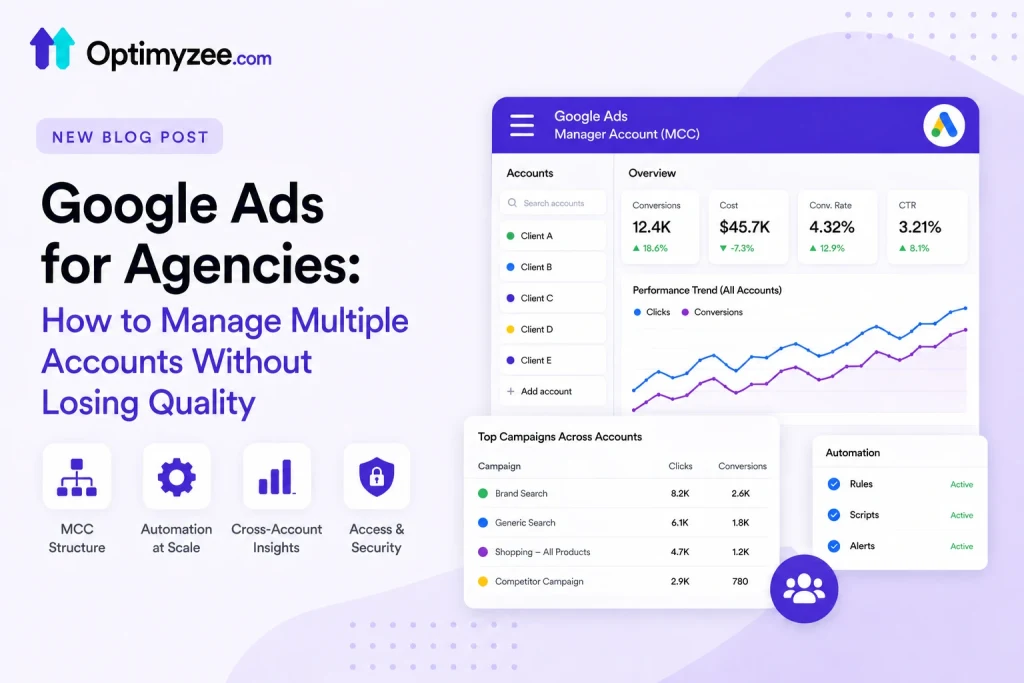
The Manager Account – formerly called My Client Centre (MCC) – is Google’s official solution for managing multiple Google Ads accounts from a single login. You cannot create campaigns or run ads in the Manager Account itself. Instead, it functions as a command layer that sits above all your client accounts and gives you visibility, access management, and cross-account tools without requiring you to log into each account individually.
Key capabilities at the Manager Account level:
- Single sign-in access to all linked accounts – no separate logins per client
- Cross-account performance dashboard – compare metrics across all accounts simultaneously
- Cross-account reporting – generate reports covering multiple accounts at once
- Consolidated billing – one monthly invoice for all linked accounts (for accounts on the same billing entity)
- Cross-account conversion tracking – set up conversion actions at MCC level and apply across all client accounts
- Shared negative keyword lists – build once at MCC level, apply across multiple accounts
- Automated rules and scripts – run across all linked accounts on a schedule
- User management – control who has access to which accounts and at what permission level
📌 MCC accounts can manage up to 85,000 accounts including sub-manager accounts. There is no practical limit for most agencies. A single Google Ads account can also be linked to up to 5 Manager Accounts simultaneously – useful when both an agency and a client want MCC-level oversight of the same account.
Sources: Google Ads Help ‘About Google Ads manager accounts’, Sendwin ‘Multi-Account Management Guide 2026’ (March 2026), Orange Trail ‘How Many AdWords Accounts Can I Have?’ (February 2026)
MCC Hierarchy: How to Organize Multiple Client Accounts
The MCC supports nested structure: you can have sub-Manager Accounts beneath your top-level MCC, allowing you to organize client accounts by team, vertical, region, or service tier. Naturally, the right hierarchy depends on how your agency is structured:
| Structure | Best For | Example |
| Flat (all clients under one MCC) | Small agencies, <20 clients | Top MCC → Client A, Client B, Client C |
| By team or specialist | Agencies with dedicated account teams | Top MCC → Team 1 sub-MCC → clients / Team 2 sub-MCC → clients |
| By vertical / industry | Agencies with industry specializations | Top MCC → E-commerce sub-MCC → clients / B2B sub-MCC → clients |
| By service tier | Agencies with tiered service offerings | Top MCC → Enterprise sub-MCC → clients / SMB sub-MCC → clients |
| By geography | Agencies with regional teams | Top MCC → EMEA sub-MCC → clients / APAC sub-MCC → clients |
Sub-Manager Accounts let you delegate oversight responsibility. A senior manager or team lead gets access to the sub-MCC and everything beneath it, without seeing accounts in other sub-MCCs. This protects client confidentiality, since team members only see the accounts they manage, while maintaining agency-wide visibility at the top level for leadership.
💡 Use consistent naming conventions across all accounts. A naming system like [Client Name] | [Country] | [Service Type] | [Account Type] makes it possible to filter, sort, and search across large account portfolios without opening individual accounts. Example: ‘Acme Corp | UK | Search | Brand’. This takes 10 minutes to implement per account and saves hours across a year of management.
Cross-Account Features That Save the Most Time
Several MCC-level features eliminate work that would otherwise require manual repetition across every client account:
Cross-Account Conversion Tracking
Set up a conversion action at the MCC level and apply it across all linked client accounts – no need to configure tracking individually in each account. This is particularly valuable for agencies that manage multiple accounts in the same vertical: a standard ‘lead form submission’ or ‘purchase’ conversion can be deployed consistently across all relevant clients from a single configuration.
The limitation: cross-account conversion tracking uses the same conversion action definition for all accounts it applies to. If different clients have meaningfully different conversion setups (different attribution models, different counting methods, different value rules), they may still need individual account-level configurations.
Shared Negative Keyword Lists
Build a negative keyword list at the MCC level and apply it to multiple client accounts simultaneously. This works well for:
- Industry-level lists: common irrelevant terms across a vertical (e.g., ‘jobs’, ‘free’, ‘DIY’ for professional service clients)
- Brand safety lists: terms that should never appear in any client’s campaign
- Competitor brand lists: if you manage multiple non-competing clients in the same space who all want to exclude the same competitor terms
Cross-Account Budget Management
Shared budgets can be set at the Manager Account level and distributed across campaigns in different accounts. This suits holding company structures or clients with flexible budget allocations between multiple accounts. For most agency setups where clients have independent billing, individual account budgets remain the cleaner approach.
Cross-Account Reporting
The MCC dashboard provides aggregate performance views across all linked accounts – total spend, conversion volume, average CPA, average ROAS – with the ability to drill down into individual account performance or compare accounts side-by-side. This saves time on the weekly performance monitoring that would otherwise require opening each account individually.
These cross-account features are what make Google Ads for agencies actually scale.
🔍 The most time-efficient monitoring workflow: set up a custom column view in your MCC dashboard that shows the metrics that matter most for your specific client portfolio. Filter for accounts with anomalous data – spend above threshold, CPA deviating more than 20% from target, campaigns that have stopped spending – before opening individual accounts. This turns a two-hour manual check into a 15-minute triage.
Automation: Scripts and Rules That Run Across All Accounts
Google Ads Scripts – JavaScript code that runs on a schedule within Google Ads – can be executed at the Manager Account level, running automatically across all linked accounts without requiring manual intervention. For Google Ads agencies managing 10+ accounts, scripts are one of the highest-leverage investments available.
Practical scripts that save significant time across a multi-account portfolio:
Budget Alert Script
Sends an email notification when any account reaches 80–90% of its monthly budget before the end of the month. Without this, budget exhaustion is typically discovered only when a client or account manager notices ads have stopped running – often too late.
Performance Anomaly Monitor
Compares the current day’s or week’s performance against the historical average for each account. It flags accounts where CPA has risen more than 30% or ROAS has dropped more than 25% from baseline. This script catches problems before they compound, identifying a tracking issue or campaign setting change within 24 hours rather than at the monthly review.
Broken URL Checker
Scans all ads across all accounts for 404 landing pages – links that were working when the ad was created but now return errors due to website changes. This is particularly common when clients update their websites without notifying their agency. A broken destination URL means all ad clicks for affected ads are lost budget.
Quality Score Monitor
Tracks average Quality Score across all ad groups in all accounts and alerts when top keywords drop below a threshold (e.g., QS 5). It catches ad relevance and landing page issues that would otherwise accumulate unnoticed between monthly reviews.
Weekly Performance Summary
Auto-generates a weekly performance email covering all accounts – spend, conversions, CPA, ROAS, impression share – and sends it to the relevant team members. This eliminates the manual data collection step from weekly internal reporting.
⚠️ Scripts require JavaScript knowledge to set up initially. However, Google provides a library of pre-built scripts at ads.google.com/home/resources/scripts, and many are available through PPC community resources. The investment in learning or implementing scripts pays back in hours saved within the first month for most agencies managing five or more accounts.
Access Control and Security
Access control is one of the most neglected parts of Google Ads for agencies. Poor access management creates client confidentiality risks, unnecessary suspension cascades, and operational chaos when team members leave.
The correct access model:
| Access Level | What It Allows | Who Should Have It |
| Admin | Full control including user management and billing | Agency owner, senior leadership only |
| Standard | Create and manage campaigns; view all data; no user or billing management | Account managers and specialists |
| Read-only | View data only – cannot make changes | Client stakeholders, junior analysts |
| Email-only | Receives automated reports only | Clients who want reports but not direct access |
- Grant access at the individual account level for team members, not at the Manager Account level – individual account access means team members only see the clients they work on, protecting confidentiality across the portfolio
- Enable two-factor authentication on all Google accounts used for Ads management
- Conduct an access audit when team members leave or change roles – remove or downgrade their permissions immediately
- Inform clients about who has access to their accounts and at what level – transparency builds trust and is required by data protection regulations in many jurisdictions
- Never share login credentials between team members – each person should have their own Google account with appropriate access granted through the MCC
🚨 Suspension cascade risk: if accounts in the same MCC share billing information, IP addresses, or other identity signals, a suspension on one account can cascade to others. Keep accounts that should remain independent completely separated – different billing, ideally different browser sessions for management, and no shared payment methods with client accounts that have had compliance issues.
Client Reporting at Scale
Client reporting at scale is where Google Ads for agencies loses the most operating time. Building individual monthly reports for 20 clients manually – pulling data, formatting it, adding commentary, sending it – can consume 20–40 hours per month that could be spent on optimisation.
The reporting stack that works at scale in 2026:
Looker Studio (formerly Data Studio): Google’s free data visualisation tool connects directly to Google Ads via the MCC and generates automated, interactive dashboards. Build a report template once, connect it to each client’s data source, and it updates automatically. Clients can access their dashboard on-demand without waiting for a monthly email.
Automated scheduled emails: Both Google Ads and Looker Studio can send automated scheduled email reports – weekly summaries, monthly performance reviews – without manual intervention. Set these up for each client account once and they run indefinitely.
Google Ads Scripts for custom summaries: the weekly performance summary script described above eliminates the data-gathering step from internal reporting. As a result, the analyst role shifts from data collection to interpretation and recommendation.
💡 Build a standard client report template that includes: month-over-month performance comparison, top 3 wins and top 3 areas for improvement, campaign spend by objective, and one forward-looking recommendation. Apply this template structure to every client. Consistent format reduces production time and makes it easier for clients to read across months – they know where to look for each piece of information.
Account Ownership: The Critical Contract Question
One of the most consequential decisions in agency-client relationships is who owns the Google Ads account. This has significant operational implications that are often not discussed clearly until a relationship ends.
Agency-owned accounts: the agency creates the account under their MCC and manages it. This is fast to set up and easy to manage, but carries a risk: if the client leaves, all campaign history, conversion data, audience lists, and Quality Score history typically stay with the agency. The client starts from zero with a new account.
Client-owned accounts: the client creates the account with their own billing and grants the agency access through the MCC. This is more complex to set up, but the client retains everything if the relationship ends. It’s the better practice for client retention and transparency, since it demonstrates confidence that you are delivering value, not just holding account history hostage.
📌 Best practice for agencies: set up all new client accounts as client-owned, with the client’s billing information, and request Standard or Admin access through your MCC. Include a clear clause in your service agreement specifying access levels during and after the engagement. This is the approach that builds long-term trust and reduces legal ambiguity when client relationships end.
AI Tools and Google Ads for Agencies in 2026
The shift toward AI-powered campaign management – Smart Bidding, AI Max, Performance Max, automated asset generation – changes the nature of agency work rather than eliminating it. Google’s automation increasingly handles the routine optimisation tasks that previously required manual attention, such as bid adjustments, match type tweaking, and ad copy A/B testing at keyword level.
What this means for agency workflow:
- Less time on execution, more time on strategy – the decisions that benefit from client knowledge, industry context, and business goal alignment are still human
- More emphasis on measurement infrastructure – ensuring conversion tracking is accurate across all accounts becomes more important as automation depends on clean signals
- More emphasis on creative – as bidding and targeting automate, creative quality becomes the primary performance differentiator across accounts
- Cross-account pattern recognition – an agency managing 30 accounts in the same vertical can identify what works faster than any individual advertiser, and apply learnings systematically
🔍 The agencies that will be most successful in 2026 are not those that master every new Google feature on the day of launch. Instead, they are the ones that have built systematic processes for evaluating new features, testing them in controlled environments across their client portfolio, and scaling what works consistently. The MCC infrastructure described in this guide is what makes that systematic approach possible at scale.
FAQ
Is the Manager Account (MCC) free to use?
Yes. Google Ads Manager Accounts are completely free to create and use regardless of how many accounts you manage. There is no charge for the MCC itself – you only pay for ad spend within the individual client accounts. Monthly invoicing through consolidated billing requires spending above a minimum threshold (typically £1,000 or $1,000+ per month total across accounts), which unlocks billing from a single monthly invoice rather than per-account automatic charges.
Can a client see all other client accounts in my MCC?
No. Individual account users – including clients – only have visibility into the specific accounts they have been granted access to. They cannot see other accounts in the MCC hierarchy, other clients’ data, or the MCC level itself. Client confidentiality is maintained by design through the access control structure. Only MCC-level users (typically the agency) have cross-account visibility.
What happens to a client’s account data if they leave?
If the account is client-owned (set up under the client’s billing), all data remains with the client when access is revoked. Campaign history, conversion data, Quality Scores, audience lists, and account performance data all stay in the account. If the account is agency-owned, the data typically stays with the agency. This is why account ownership structure should be clarified in contracts before onboarding – not after a relationship ends.
Can I run scripts across all my client accounts at once?
Yes. Google Ads Scripts can be run at the Manager Account level and will iterate through all linked accounts automatically. You write the script once, deploy it at the MCC level, and it runs across every linked account on the schedule you define. This is how agencies implement budget alerts, performance monitors, broken URL checkers, and weekly summary reports that cover all client accounts without manual repetition.
How should I handle a client who wants to see all their data in real-time without waiting for monthly reports?
Set up a Looker Studio dashboard connected to their Google Ads account via the MCC data connector. The dashboard updates automatically as Google Ads data refreshes (typically within 24 hours). Grant the client view-only access to their specific dashboard – they can check performance whenever they want without needing to log into Google Ads directly, and without having access to anything beyond their own account data.
The Bottom Line
Multi-account Google Ads management is a systems design problem more than a PPC expertise problem. The technical knowledge required to run excellent campaigns does not change between managing one account and managing thirty. What changes is the infrastructure required to maintain that quality consistently across a portfolio.
The Google Ads MCC gives you the command layer. Cross-account features eliminate redundant setup. Scripts handle routine monitoring. Standardised naming conventions and report templates make cross-account analysis feasible. Access controls protect clients and reduce suspension risk. Clear account ownership agreements prevent contractual ambiguity.
Admittedly, building this infrastructure takes time upfront. However, an agency that has invested in proper MCC structure, automation, and reporting workflows can maintain quality across a much larger account portfolio, and can onboard new clients faster, with less setup friction, than one that treats every account as an isolated manual process. Google Ads for agencies is fundamentally a systems design problem, not a PPC expertise problem.
→ Managing Google Ads campaigns for multiple clients or scaling your own account portfolio? Optimyzee handles the keyword structuring and campaign setup layer – the most time-consuming part of onboarding a new account – so you can focus on strategy and optimisation from day one. If you’re also fixing conversion tracking across client accounts, do that at the MCC level first so every new account inherits clean signals from day one.
Sources
Google Ads Help: ‘About Google Ads manager accounts’ – MCC features, access levels, linking documentation
Google Ads Help: ‘Manage clients and campaigns with manager accounts’ – official setup guide
Sendwin: ‘Manage Multiple Google Ads Accounts: Multi-Account Management Guide 2026’ (March 2026)
Orange Trail: ‘How Many AdWords Accounts Can I Have? | Google Ads Limit Guide 2026’ (February 2026)
Leadsie: ‘Google Ads Manager Account (MCC): What is it & 7 Reasons Agencies Should Use One’ (January 2026)
Google Ads Scripts library: ads.google.com/home/resources/scripts – official script templates